
Introduction and Login Steps for the E-Complish Support System (ESS)
Below you find login instructions for the E-Complish Support System or ESS. The ESS is your one-stop portal for all things related to your account with E-Complish which include:
- Creation of Support Tickets
- Review of Past Support Tickets
- News and Announcements
- Frequently Asked Questions
- Community Conversations
Notices and Notes:
- IFor security purposes, the only time you will ever need to login is for the secure upload and download of files.
- Alternatively, if you do not expect to ever send E-Complish a file attachment, you have the option of chatting with us through e-complish.com or sending us an email to support@e-complish.com. Both methods will still open a ticket on your behalf but are considered less secure. If this is your preferred method, you can stop reading right here and have a great day!
Let’s Get Started with Logging into the New ESS…
To start taking advantage of the new ESS will require you to login. There are two ways to log into the ESS.
- External Profile Login Method using your existing username and password with outside services like Twitter, Facebook, Google, and Microsoft.
- Sign-Up Method to create a login and password combination
Step One:
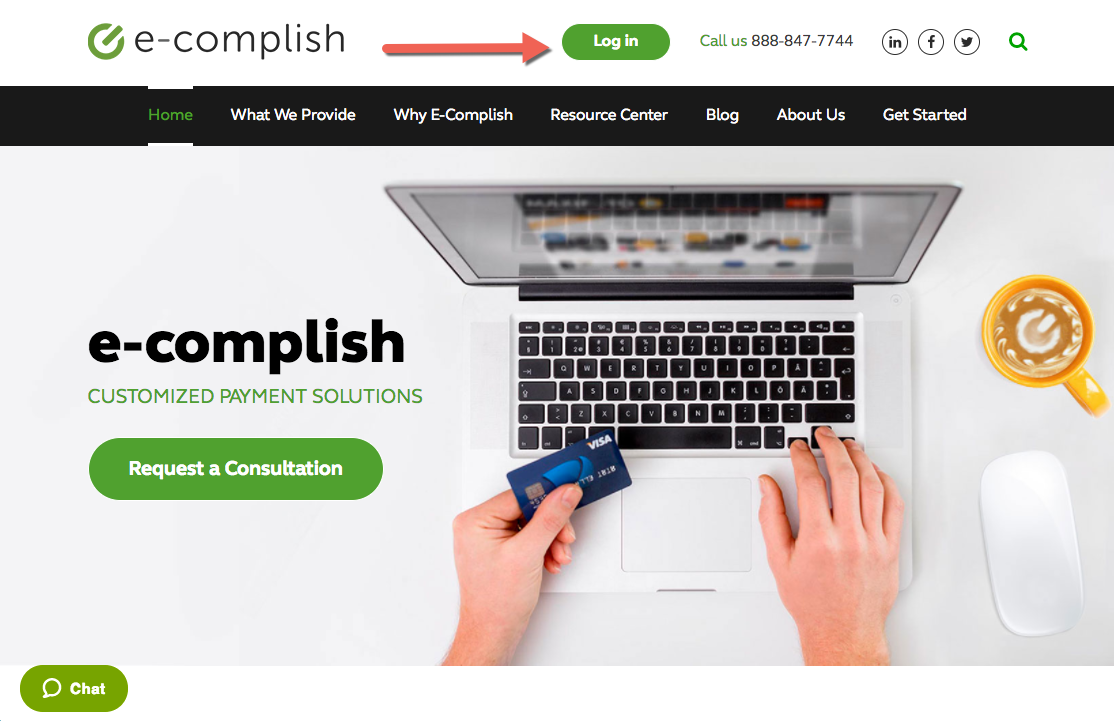
To access the ESS, please use the hyperlink that sits at the top of e-complish.com, and reads, ‘Log In’.
Step Two:
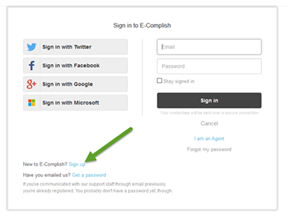
You will be brought to the new ESS login page where you have several options to login.
Existing External Profile Login Method:
Instead of creating yet another login just for the new ESS, you have the option to use your existing login information you already use for sites like Twitter, Facebook, Google, and Microsoft.
Using this method is absolutely secure and in fact, nothing about your login is ever shared with E-Complish. In a lot of ways, this method is more secure and easier for when you change your login passwords in the future.
- To use one of these methods, simply click on the box for Twitter, Facebook, Google or Microsoft.
- You will then enter your existing username and password with that service.
- The service will ask your permission to use this login for access to the ZenDesk application. Simply allow the service access and you are all set!
- Going forward, just click on the bar for your service and it will prompt you for your normal login information with them and Boom! You are now in the new ESS. It's that easy!
Sign Up for a New Login:
For those that do want to create a separate username and password for the new ESS, we make that easy too. Simply select the ‘sign-up’ hyperlink.
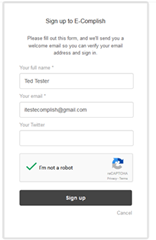
Once you select the ‘Sign-up’ hyperlink, you will be taken to the enrollment page. The enrollment page is two simple questions; your full name and email address. Further, there is a space to enter your twitter handle (should you have one). Finally, you will be asked to confirm you are not a robot. If you are a robot, you cannot have access to the support portal. Rules are Rules!
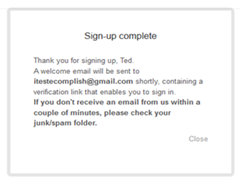
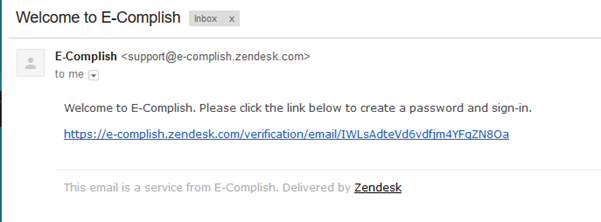
Upon submission of your information, you will receive a message stating your sign-up is complete, and that a confirmation email with a verification link has been sent to the email address you just provided.
An example email looks like this…
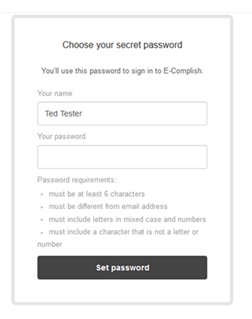
Now create a password…
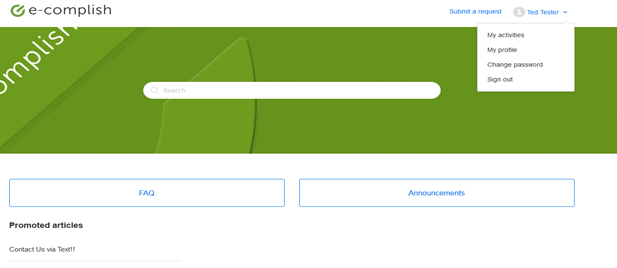
Hooray! You are now logged!
You will come to the main ESS page where you can Submit a Request (at the top right of page), view FAQs (Frequently Asked Questions) and view Announcements.
Going Forward…
- Just log in at Step One using the hyperlink that sits at the top of e-complish.com, and reads, ‘Log In’.
- Use your new login and password to gain access.
- At any time, you can view your current and past activities, change your profile and/or password using the drop-down under your name in the top right corner.
Team E-Complish is committed to excellent service...you deserve it!
EASY PAYMENTS. HAPPY CUSTOMERS. SMARTER BUSINESS
Let us know what you think?
Comments
0 comments
Please sign in to leave a comment.